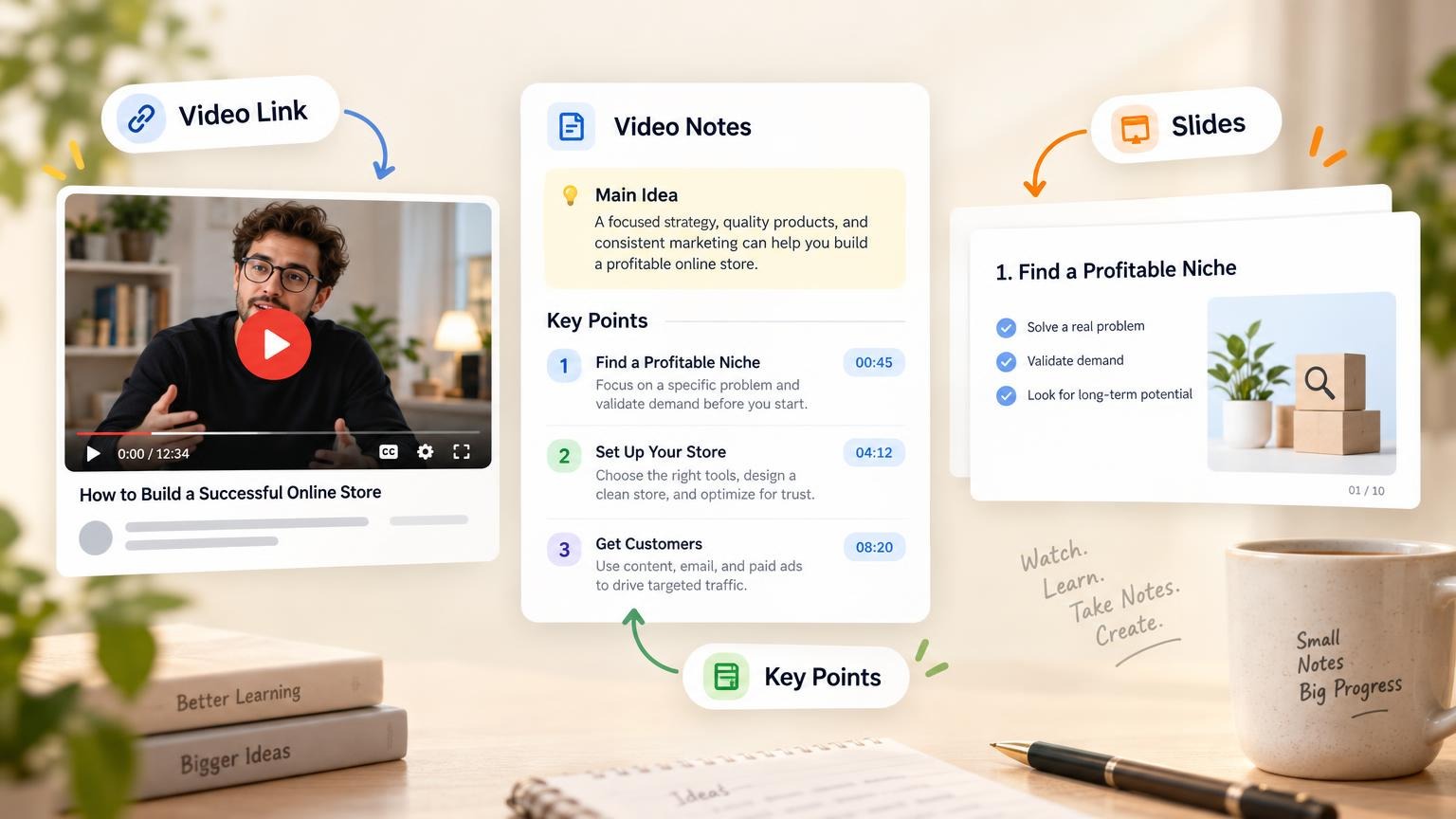


Create a PowerPoint with AI by describing your topic, uploading a PDF or brief, approving the slide outline, and exporting a .pptx file. Copilot, Slides add-ins, and standalone builders like GenPPT follow the same steps. You decide how much to handle before design starts.
The tool drafts structure, copy, and layouts. You verify facts, audience, and messaging. Skip that step and you may present numbers the model invented.
What AI does (and what it does not)
AI presentation tools draft structure, write slide copy, pick layouts, generate charts, and render slide visuals. You still own facts, messaging, and what your audience cares about.
| Task | AI can help | You still need to |
|---|---|---|
| Slide outline | Yes | Confirm the story order matches your goal |
| Copy and headlines | Yes | Fix names, numbers, and claims |
| Visual design | Yes | Pick the concept direction that fits the room |
| Charts and metrics | Yes | Verify data from your source doc |
| Speaker delivery | No | Rehearse timing and transitions |
| Legal/compliance sign-off | No | Review sensitive content yourself |
If you want a tool comparison first, read Best AI PowerPoint Generators in 2026.
The GenPPT workflow in 4 steps
GenPPT renders each slide as a designed image, then exports PowerPoint or PDF. Upload source material, approve the outline, pick a concept, export.
Step 1: Add source material
Start with one of these:
- Prompt only: "10-slide QBR for our SaaS board, professional tone, focus on retention"
- Document: PDF, Word doc, or pasted notes with metrics you need preserved
- Link: A product page or report URL for research context
Step 2: Approve the outline
GenPPT maps your input into a slide-by-slide outline. Edit titles, bullets, and order before design starts. Fix the story here so generic filler never reaches the final deck.
Step 3: Pick a visual concept
GenPPT shows a contact sheet of visual directions. Pick the one that fits your audience: boardroom clean, bold launch creative, or data-heavy report.
Step 4: Generate, refine, export
GenPPT renders the full deck. Regenerate a slide in chat when copy or layout miss. Export .pptx or PDF when you are ready.
Example 1: Content marketing strategy deck
Input prompt: "10-slide deck on why content marketing compounds ROI for B2B SaaS. Audience: marketing leaders. Include metrics placeholders and a clear CTA."
What we look for: A title slide, a problem slide, proof points, and a closing ask. Bullet walls fail here.
Cover slide:
ROI slide:
Compounding slide:
Takeaway: Marketing decks need scannable headlines and one idea per slide. Approve the outline before you pick visuals so the story arc holds.
Example 2: SaaS product-launch deck
Input prompt: "12-slide PLG launch deck for a B2B analytics tool. Audience: seed investors. Include problem, product demo story, traction placeholders, pricing slide, and ask."
Cover:
Mid-deck story slide:
Takeaway: Pitch decks fail when slide 3 shows the wrong positioning. Fix the narrative in the outline step before render.
See more launch-style decks on /examples.
Example 3: Retail campaign deck
Input prompt: "8-slide retail launch plan for a spring collection. Audience: regional store managers. Include timeline, channels, in-store activation, and KPIs."
Opening slide:
Takeaway: Full-slide visuals help operational decks too. Your managers scan slides on phones before meetings.
Example 4: Technical product overview
Input: Uploaded product brief + prompt for a 10-slide explainer on a new GPU architecture. Audience: technical buyers and partners.
Takeaway: When your source material is dense, upload the doc. GenPPT pulls figures and section structure from the file. It won't invent specs.
Manual PowerPoint vs AI-assisted creation
| Step | Manual PowerPoint | AI with GenPPT |
|---|---|---|
| Starting point | Blank template | Prompt, PDF, or link |
| Structure | You outline every slide | AI draft + you edit outline |
| Design | Manual layout per slide | Pick concept, full-slide render |
| Visuals | Stock search + charts | Charts and layout in slide image |
| Iteration | Duplicate slides, nudge boxes | Regenerate one slide in chat |
| Export | Native .pptx | Export .pptx or PDF |
| Typical time | 2–6 hours | ~15–30 minutes including review |
Prompt templates that work
Copy these and fill in the brackets.
Executive update
Create an [8]-slide [weekly/monthly] business update for [audience].
Goal: [one decision or alignment outcome].
Include: highlights, risks, metrics table placeholders, next steps.
Tone: direct, no jargon.
Sales deck
Create a [10]-slide sales deck for [product] targeting [buyer role].
Structure: problem, cost of status quo, solution, proof, pricing overview, CTA.
Keep one metric per slide max.
Training deck
Create a [12]-slide training deck on [topic] for [new hires / customers].
Include: learning objectives, step-by-step process, common mistakes, quiz recap slide.
Tone: clear and practical.
Document-to-deck
Turn the attached [PDF/report/brief] into a [slide count]-slide presentation for [audience].
Preserve all pricing, dates, and names exactly as written.
Do not invent statistics.
How to refine before you present
- Fact-check every number. AI can hallucinate metrics even when you upload a source file.
- Cut slide count. If a slide needs 90 seconds to explain, split it.
- Regenerate weak slides. Change one slide in chat instead of rebuilding the deck.
- Open the
.pptxin PowerPoint. Confirm fonts, slide order, and file size before sending. - Rehearse with speaker notes. Practice transitions out loud. The tool does not know your room.
For post-export editing, Can ChatGPT Make PowerPoints? explains why .pptx export beats screenshot-only tools.
Which AI tool should you pick?
| Tool | Best for | Export to .pptx |
|---|---|---|
| GenPPT | Document uploads, concept approval, full-slide visuals | Yes |
| Microsoft Copilot | Teams already on M365 | Yes (native) |
| Plus AI / SlidesAI | Editing inside PowerPoint or Google Slides | Yes (in-app) |
| Gamma | Fast web-native decks | Yes (layout can shift) |
| Beautiful.ai | Brand-locked smart templates | Yes |
Compare GenPPT to Gamma in our Gamma alternative guide. If you are still choosing Slides or PowerPoint as your base editor, see Google Slides vs PowerPoint and How to Convert PowerPoint to Google Slides.
Frequently asked questions
Can AI create a real PowerPoint file?
Yes, if the tool exports .pptx. GenPPT, Copilot, Plus AI, and several web-native tools do. ChatGPT alone does not; it outputs text or static images unless you paste into slides yourself.
How long does an AI PowerPoint take?
Generation finishes in 2–3 minutes. Budget 10–15 more minutes to review the outline, fix facts, and skim the export. Complex document uploads can take longer on the first pass.
Should I start from a prompt or a document?
Use a document when you have a report, proposal, or PDF with numbers you must preserve. Use a prompt when you are starting from scratch and want the AI to research the topic. If you only need to read the PDF faster first, Can ChatGPT Summarize a PDF? covers upload limits. Deck export still needs a builder like GenPPT.
Will the deck look good in PowerPoint after export?
Full-slide image decks (GenPPT) export as slides with embedded visuals. Layout stays stable. Card-based web tools can lose spacing on export. Open the file before presenting.
Is there a free way to try this?
Not for free. GenPPT starts with a $1 three-day trial (card required), then $25/month or $99/year for 20 decks per month and watermark-free export. See /pricing.
Can I edit slides after AI generates them?
Yes. In GenPPT, regenerate individual slides in chat, then re-export. In Copilot or Plus AI, edit inside PowerPoint or Google Slides.
Start with one deck
Pick a meeting on your calendar. Write a one-paragraph brief: audience, decision, slide count, tone. Run it through GenPPT, approve the outline, pick a concept, export PowerPoint. Before you present, add cues in PowerPoint speaker notes and rehearse once in Presenter View.