

Your team switched to Google Workspace. Someone sends a .pptx from last quarter. You upload it, click Open with Google Slides, and the title slide looks fine until slide four drops a chart off the edge and every heading is in Arial instead of your brand font.
Converting PowerPoint to Google Slides takes about a minute. Fixing what breaks can take an hour.
Google's built-in converter handles text and basic shapes well. Custom fonts, complex animations, embedded Excel charts, and SmartArt need manual cleanup or a fresh deck built for the cloud. Compare Google Slides vs PowerPoint if you are unsure whether to convert at all. This guide covers the upload path, what shifts during formatting, and when exporting from GenPPT beats fighting a broken import.
PowerPoint to Google Slides: what actually happens
Google does not translate PowerPoint pixel for pixel. It imports your file into the Google Slides object model and recreates text boxes, shapes, images, and tables in Google's format.
| What transfers cleanly | What breaks |
|---|---|
| Plain text and bullet lists | Custom fonts not in Google Fonts |
| Basic rectangles, circles, lines | SmartArt and complex grouped shapes |
| Static images (PNG/JPG) | Animated GIF timing and some transparency |
| Simple tables | Excel-linked charts and some data labels |
| Solid fill colors | Gradients, shadows, and 3D effects |
| Speaker notes (most decks) | Most transitions and animation paths |
Conversion opens a copy in a different app. It does not behave like a PDF export. Slide count stays the same. The design layer underneath changes.
Method 1: Upload to Google Drive (recommended)
Google documents this path. Most teams use it.

Step 1: Upload your .pptx
Open Google Drive. Click New → File upload and select your PowerPoint file (.ppt or .pptx).
Wait for the upload to finish. You should see the file with a PowerPoint icon in your Drive list.
Step 2: Open with Google Slides
Right-click the uploaded file. Choose Open with → Google Slides.
Google creates a preview-style copy. You can scroll through slides and edit text, but the file stays linked to the original upload until you save it as a native Slides document.
Step 3: Save as Google Slides
In the Slides editor, go to File → Save as Google Slides.
Google saves a new .gslides file in the same Drive folder. That native file is what you share with collaborators. Real-time editing, comment threads, and version history work from here.
Step 4: Click through every slide
Before you send the link, open View → Grid view or use presenter preview and scan the full deck. Conversion bugs cluster on chart slides, section dividers with heavy design, and slides that used PowerPoint-only features.
Tip: Rename the new Slides file immediately (
Q3 Board Update, Google Slides) so teammates do not open the old.pptxby mistake.
Method 2: Import slides into an existing deck
Use this when you need a few slides from a PowerPoint file.
- Open your Google Slides presentation
- Select the slide where you want new content inserted
- Go to File → Import slides
- Choose Upload and select your
.pptx, or pick a file already in Drive - Select individual slides or All slides, then click Import slides
Imported slides have the same formatting problems as a full upload. Mixing imported PowerPoint slides with Slides-native master layouts can make font sizes jump. Check consistency after import.
What breaks during conversion (and how to fix it)
Fonts
PowerPoint decks use corporate fonts installed on a Windows machine. Google Slides only renders fonts available in Google Fonts plus a small set of system fallbacks.
Symptoms: Headlines shrink or wrap wrong, weights look wrong, brand typography disappears.
Fixes:
- Swap custom fonts to Google Fonts equivalents before upload (Arial → Roboto, Helvetica → Open Sans)
- In Slides, select text → Format → Font and apply a shared team font from your theme
- For strict brand compliance, rebuild slides in a tool that exports clean
.pptx, then convert once fonts are embedded or standardized
Charts and data visuals
Excel-linked charts are the most fragile import. Google may rasterize a chart as a flat image or drop live data links.
Symptoms: Missing legends, wrong axis labels, charts that cannot be edited.
Fixes:
- Rebuild the chart inside Google Slides (Insert → Chart) and paste values from Excel or Sheets
- Export problem charts from PowerPoint as PNG at 2× resolution, then replace the broken slide element with the image
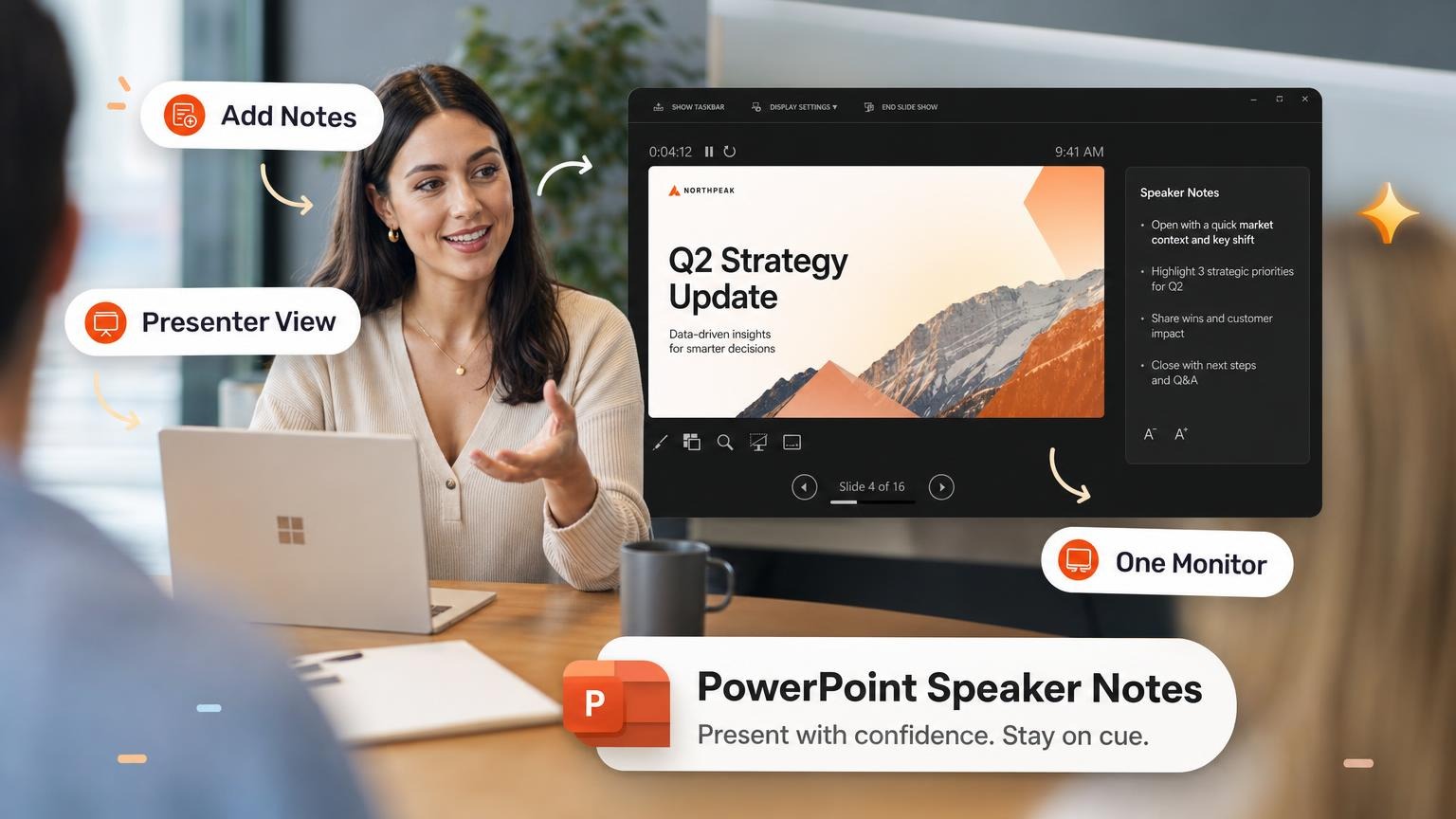
- Keep a link to the source spreadsheet in speaker notes
Images and media
Most static images import fine. Problems show up with cropped images inside placeholders, SVG icons from icon packs, and embedded video that pointed to local files.
Symptoms: Blank image boxes, stretched photos, videos that fail to play.
Fixes:
- Right-click broken images in PowerPoint and Save as Picture before upload, then re-insert in Slides
- Re-upload videos to Google Drive or YouTube and insert by URL in Slides
- For icon sets, use Slides add-ons or replace with built-in Google shape icons
Animations and transitions
Google Slides supports a smaller animation set than PowerPoint. Morph transitions, motion paths, and trigger animations do not survive.
Symptoms: Slides appear static in present mode, or animation order resets.
Fixes:
- Re-apply key animations manually in Slides (Insert → Animation)
- For pitch decks where motion matters, present from PowerPoint or export a video backup
- Accept static slides for internal read-ahead decks where animation was decorative
SmartArt, WordArt, and grouped objects
SmartArt diagrams ungroup into loose shapes or collapse into a single uneditable image.
Fixes:
- In PowerPoint, convert SmartArt to shapes (SmartArt → Convert to Shapes) before upload
- Simplify busy diagrams to fewer grouped elements
- Redraw the diagram in Slides or Mermaid-style tools for recurring templates
PowerPoint vs Google Slides: when conversion is worth it
| Situation | Convert the .pptx | Skip conversion |
|---|---|---|
| Team lives in Google Docs/Sheets/Slides | Yes | - |
| Deck is mostly text and bullets | Yes | - |
| Heavy animation or Morph transitions | Maybe; expect rework | Present from PowerPoint |
Strict locked brand template in .potx | Maybe | Keep in PowerPoint |
| One-time share with a Google-only client | Yes | - |
| More than ~30% of slides break on import | - | Rebuild |
For a broader tool comparison, see Best AI PowerPoint Generators. Many teams start in AI builders and export .pptx only when a client requires PowerPoint.
When to use GenPPT export instead
Convert when you have a solid PowerPoint and need Google collaboration. Use GenPPT when the deck needs a rewrite.
Use GenPPT when:
- The PowerPoint is outdated and you would rewrite most slides anyway
- Conversion mangled charts, fonts, and layouts on more than a third of slides
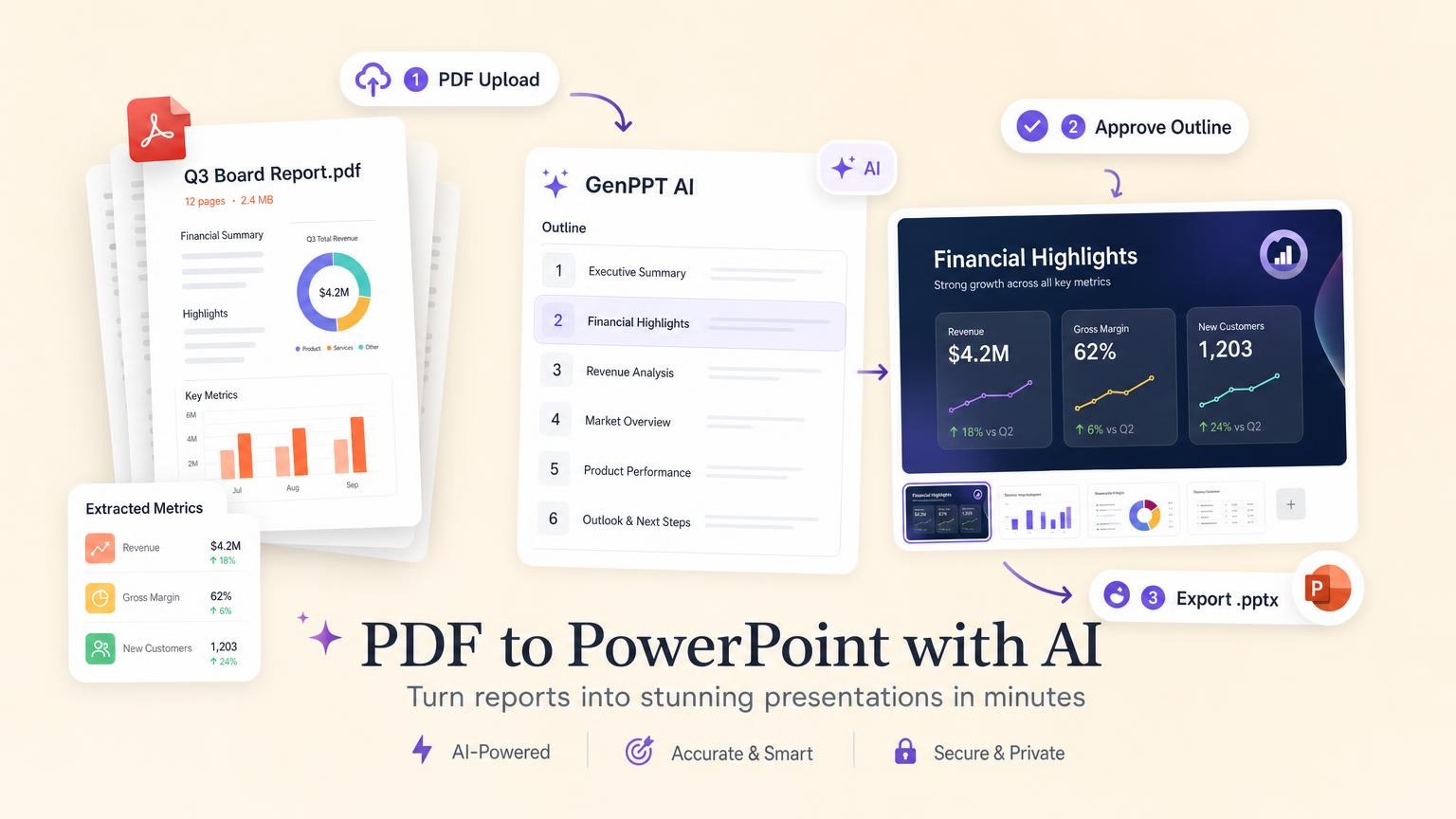
- You have a PDF or Word brief and want a fresh narrative, not a broken import of old slides
- You need a polished visual pass before anyone opens Google Slides
GenPPT builds full-slide visuals, exports .pptx and PDF, and you upload the .pptx to Drive the same way. You approve an outline and visual concept before slides render, so you skip repairs to someone else's 2019 template.
Workflow:
- Upload your source PDF, Word doc, or old
.pptxto /app/new - Approve the slide outline and pick a visual concept
- Export
.pptxfrom GenPPT - Upload to Google Drive and Open with Google Slides
GenPPT slides export as designed images inside a .pptx, so layout holds in Google Slides. You edit copy by regenerating slides in GenPPT chat instead of clicking text boxes in Slides. Teams that care more about consistent visuals than per-box editing come out ahead.
Read How to Create a PowerPoint with AI for the full AI workflow. If your source material is a PDF, start with How to Turn a PDF into a PowerPoint with AI.
Post-conversion QA checklist
Run this before you share the Slides link:
- Grid view every slide and scan for overflow text and missing images
- Check fonts on title and body styles against your brand guide
- Open present mode and read speaker notes aloud
- Test charts. Click each one to confirm data is editable or left as a flat image.
- Verify links. Hyperlinks and email addresses still work.
- Share with one colleague on a Google account and watch them edit live
- Download a
.pptxbackup via File → Download → Microsoft PowerPoint if stakeholders still use PowerPoint
Frequently asked questions
Can you convert PowerPoint to Google Slides for free?
Yes. Upload a .pptx to the free Google Drive tier, open it with Google Slides, and save as a Google Slides file. No paid converter required.
Does Google Slides keep PowerPoint animations?
Most PowerPoint animations and transitions do not transfer. Google Slides applies its own animation tools. Plan to re-add motion manually or present from PowerPoint if animation is critical.
Why do fonts change after conversion?
Google Slides replaces fonts it cannot render with fallbacks. Install-equivalent corporate fonts from PowerPoint are unavailable in the browser. Use Google Fonts or embed-friendly typefaces before upload.
Can Google Slides open .pptx files directly?
Yes. Upload to Drive and choose Open with Google Slides, or use File → Import slides inside an existing presentation. You can also attach a .pptx to Gmail and open it in Slides from the preview.
How do I convert Google Slides back to PowerPoint?
In Google Slides, go to File → Download → Microsoft PowerPoint (.pptx). Layout holds for Slides-native decks. Round-tripping PowerPoint → Slides → PowerPoint can introduce small spacing shifts.
Is there a file size limit?
Google Drive allows uploads up to 5 TB per file on paid plans; free accounts have a 15 GB shared quota. Very large .pptx files with embedded video take longer to upload. Compress media in PowerPoint first.
What if my deck has embedded Excel charts?
Expect to rebuild charts in Google Sheets or insert static chart images. Live Excel links do not survive the import.
When should I rebuild instead of convert?
If fonts, charts, and layouts break on more than a third of slides, or the content is outdated, rebuilding with an AI deck builder is faster than slide-by-slide repair. GenPPT starts with a $1 three-day trial, enough to test a rebuild on a real project.
Start with one file today
Pick the .pptx blocking your Google migration. Upload it to Drive, open in Slides, save as a native file, and click through every slide. If cleanup snowballs, upload the same source to GenPPT and export a fresh deck instead.