
To turn a YouTube video into notes, open the video description and click Show transcript. Copy the lines you need into a document. This is free and it works on each video that has captions.
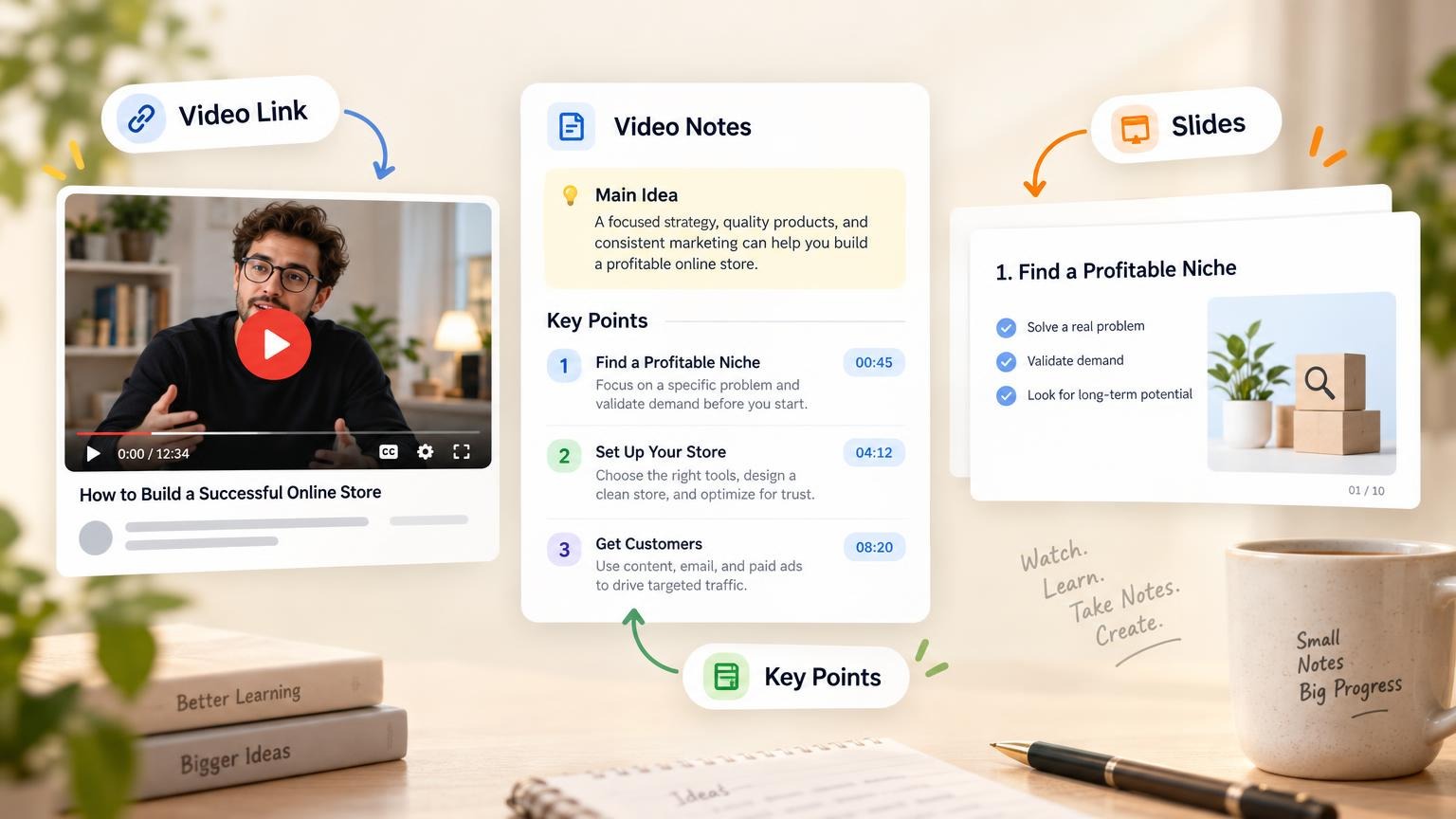
For a faster result, paste the video link into a summarizer. It gives you the key points and chapters, each with a timestamp. Check the important points against the video, then put the notes in your own words.
This guide gives four ways to get the notes, a layout for the notes, and the step that turns them into slides.
Four Ways to Turn a YouTube Video Into Notes
Each way is good for a different job. Use this table to choose.
| Way | Best for | Price | Limit |
|---|---|---|---|
| YouTube Show transcript | One short video, exact words | Free | The video must have captions. You write the notes yourself. |
| Video summarizer (Scribiz) | One video, quick key points with timestamps | Free without an account. Pro is $10 per month or $84 per year. | The free tier has a daily allowance. A model writes the summary. |
| Gemini Notebook | A course or a subject with many videos and files | Free plan with up to 50 sources in one notebook | The video must be public and have captions. Only the transcript text is read. |
| Watch and write by hand | Material you must remember | Free | Slow. |
We checked the prices and limits on each vendor's page on October 5, 2026. They can change.
Way 1: The YouTube Transcript
This is the plain method. You need no other tool.
- Open the video on YouTube.
- Click the video description to expand it.
- Click Show transcript. A panel opens with each caption line.
- Click a line to go to that moment in the video.
- Select the lines you need, copy them, and paste them into your document.
YouTube's help page says that a full transcript is available only for videos that have captions. If you do not see Show transcript, the video has no captions.
Where this way is better: you read the exact words, and no model changes them. For a quote, a definition, or a legal or medical statement, use the transcript and not a summary.
Where it is weak: a transcript is not notes. A 40-minute lecture gives you thousands of words with no structure. Automatic captions also have errors in names and technical terms.
Way 2: A Video Summarizer
A summarizer reads the transcript and writes the short version for you.
Scribiz is one tool for this job. You paste a video link or drop a file. It gives back a one-sentence summary, key points, and chapters, and each of them has a timestamp.
- Copy the YouTube link.
- Paste it into the summarizer and start the run.
- Read the summary and the key points.
- Click the timestamps of the points you will use, and check them against the video.
- Copy the key points into your notes document.
Three facts from the Scribiz pages are useful for notes:
- It does not need captions. It uses the captions when they are good and listens to the audio when they are not.
- It can read the screen of a link. The "Words and screen" mode adds notes on slides, code, and other on-screen text. This helps with lectures where the speaker says "as you can see here".
- It is free to start. You need no account for a video of up to 15 minutes. The free tier has a daily allowance. Pro costs $10 per month or $84 per year.
Scribiz says this about its own summaries: a model writes them and can leave things out, so open the timestamps that are important to you. That rule applies to each AI summarizer.
Where other ways are better: for one short video with good captions, Show transcript is free and has no allowance. For a full course, Gemini Notebook keeps all the videos in one place.
Way 3: Gemini Notebook
Gemini Notebook is the new name of Google's NotebookLM. You add sources to a notebook and then ask questions about them.
- Create a notebook.
- Add the YouTube link as a source. Add more videos, PDFs, or web pages on the same subject.
- Ask for a summary, a study guide, or the answer to a question. The answers point back to the sources.
Google's help page lists the rules for YouTube sources:
- The video must be public and must have captions, uploaded or automatic.
- Only the text transcript is imported. The picture is not read.
- A video uploaded less than 72 hours ago may not import.
- The free plan allows up to 50 sources in one notebook.
Where this way is better: it is the best of the four for a subject with many sources. You can ask one question across ten lectures and a textbook chapter. It can also make its own slide deck from a notebook, with limits that depend on your plan.
Where it is weak: a video without captions does not import, and text that is only on the screen is lost.
Way 4: Watch and Write by Hand
Writing notes by hand is slow, and it is still the best way to learn hard material. You decide what is important while you listen.
A mixed method saves time:
- Get the key points and chapters from a summarizer first.
- Watch only the chapters you need, at normal speed.
- Add your own notes below each key point.
A Layout for Video Notes
Good notes are short and easy to check. Use the same five parts for each video.
| Part | What to write |
|---|---|
| Source | Title, speaker, link, and the date you watched |
| Main idea | One sentence. What does the video claim or teach? |
| Key points | Three to seven points, each with a timestamp |
| Facts | Numbers, names, definitions, and quotes, with timestamps |
| Open questions | What you did not understand or want to check |
Three rules keep the notes useful:
- Write the key points in your own words. If you cannot, watch that part again.
- Keep the timestamps. They let you check a point in ten seconds.
- Mark what you checked. A point from an AI summary is a draft until you hear it in the video.
How to Turn the Notes Into Slides
Notes are for you. Slides are for an audience. The step between them is to cut.
1. Choose the audience and the length
Decide who will see the slides and how long you will speak. A good first number is one slide per minute. See how many slides per minute for other talk lengths.
2. Cut the notes to one idea per slide
Each key point becomes one slide. Put the facts for that point below it. Remove points that the audience does not need.
3. Paste the notes into GenPPT
Open GenPPT and paste the notes into the prompt. Add the audience, the slide count, and the goal. For example:
Make a 10-slide class presentation from these notes. The audience is first-year biology students. Use one key idea on each slide and keep the numbers exact.
GenPPT drafts an outline first. Read it and change it before the design step. Then it designs each slide, and you export a .pptx or PDF file.
4. Or paste the YouTube link directly
GenPPT also takes a YouTube link as the source. Paste the link into the prompt, and it analyzes the video before it writes the outline. This is the shorter route when you do not need separate notes.
Use notes first when the content must be correct, such as a class, a client briefing, or a report. You check the notes one time, and the slides start from text you trust.
5. Check and credit the source
- Check each number and name on the slides against your notes.
- Credit the video. Put the title, the speaker, and the link on the last slide or in the footer.
- Do not copy long parts of the transcript. Use short quotes and your own words.
If you present the deck, put the details in the speaker notes and keep the slides light.
What GenPPT Costs
The GenPPT trial costs $1 for 3 days of full access and needs a card. After the trial, the price is $25 per month or $99 per year. See the pricing page.
The slides are image-native designs that you edit in chat. If you want to move text boxes by hand, write the slides yourself in PowerPoint or Google Slides from your notes.
Frequently Asked Questions
How do I convert a YouTube video to notes for free?
Open the video description and click Show transcript. Copy the lines you need and write the key points below them. A summarizer such as Scribiz also has a free tier that needs no account for a video of up to 15 minutes.
Can AI make notes from a YouTube video?
Yes. A video summarizer reads the transcript and gives key points and chapters with timestamps. Gemini Notebook answers questions about a video that you add as a source. In each tool a model writes the text, so check the points you will use.
What if the video has no captions?
Show transcript does not appear, and Gemini Notebook cannot import the video. Use a tool that listens to the audio. Scribiz says it listens when captions are missing or poor.
How do I turn YouTube notes into a PowerPoint?
Cut the notes to one idea per slide. Then paste them into an AI presentation tool such as GenPPT with the audience and the slide count. Approve the outline, let it design the slides, and export a .pptx file. The same method works for a document: see PDF to PowerPoint with AI.
Is it legal to use a YouTube video for notes and slides?
Notes for your own study are normal use. For slides that you share, use your own words, keep quotes short, and credit the video. Copyright rules differ by country, and this is not legal advice. Ask your school or employer if you are not sure.
How long should notes for a one-hour video be?
One page is a good target: one main idea, three to seven key points, and the facts for each point. If the notes are longer than that, the video has more than one subject. Split the notes by chapter.