
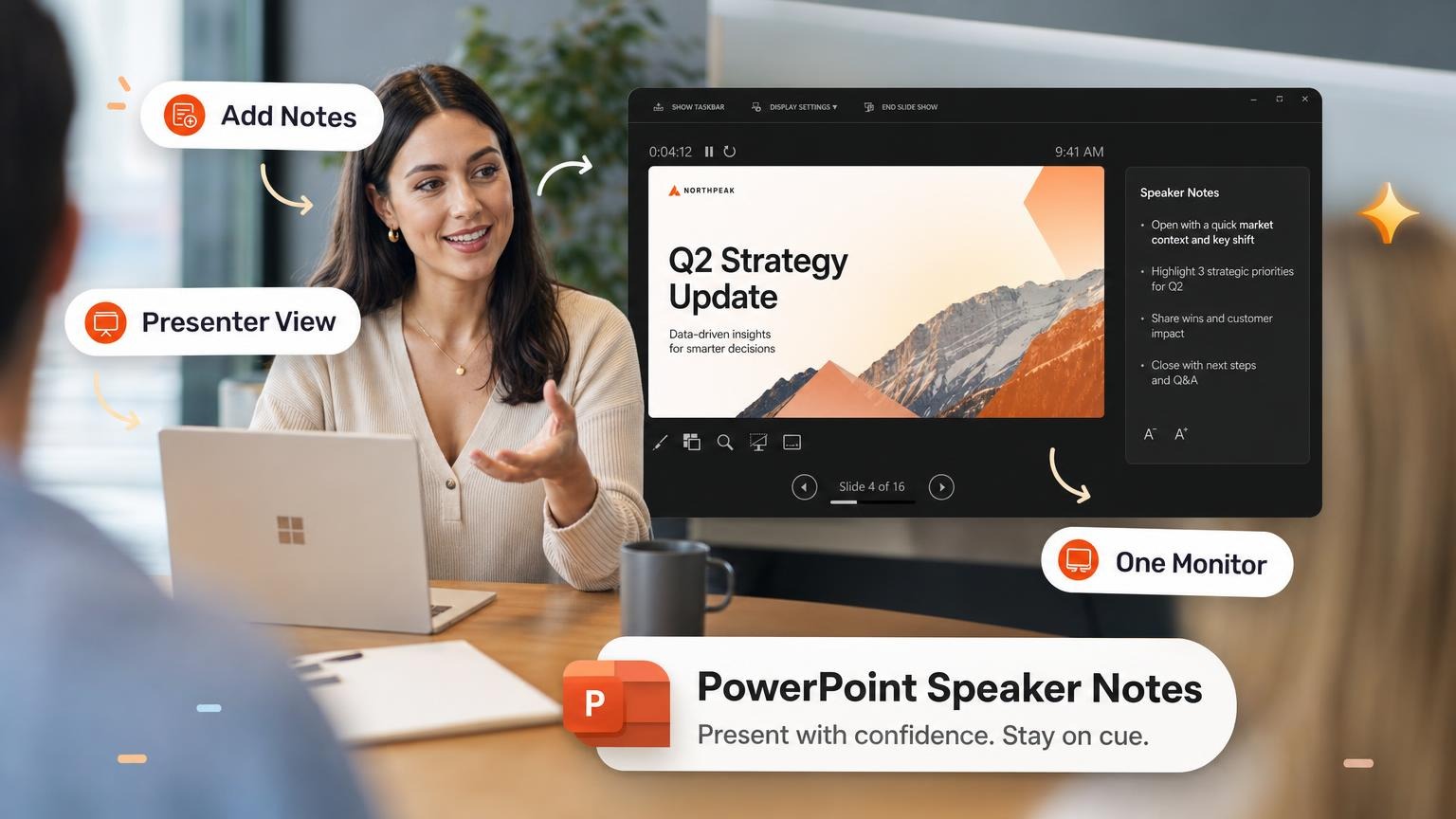
You finished the slides. Then the meeting moved up a day and you still need a script. PowerPoint speaker notes live in a panel below each slide. The audience never sees them; you see them in Presenter View. Write them once, rehearse with them, and you stop blanking on slide three.
This guide covers adding notes, presenting with one or two monitors, printing handouts, rehearsing timings, and when a separate speaker script works better than cramming text into PowerPoint.
How to add speaker notes in PowerPoint
Every slide can have its own notes block. PowerPoint stores them in the file and shows them in Presenter View, printed notes pages, and exported PDFs.
Open the Notes pane
- Open your
.pptxin PowerPoint (desktop or web). - Go to the View tab.
- Click Notes (or Notes Page for print layout preview).
You get a text area below the slide thumbnail. Click inside it and type.

Write notes that help you speak, not read
Keep speaker notes as short spoken cues. Full paragraphs pull you into reading aloud.
| Do | Avoid |
|---|---|
| 3–5 short bullets per slide | Full paragraphs you will read aloud |
| Transition lines ("Next: show the chart") | Repeating every bullet on the slide |
| Names, numbers, and dates you might forget | Jokes or asides that break eye contact |
| A one-line opener for complex slides | Notes longer than 30 seconds of speech |
If you built the deck with AI, start from the outline you approved. Tools like GenPPT lock slide copy before render. Paste that outline into notes and trim it to spoken cues. For a full AI workflow, see How to Create a PowerPoint with AI.
Notes in Google Slides
Google Slides uses Speaker notes at the bottom of the editor. Write per slide, present with Presenter view or a separate notes window. Export to .pptx if you need PowerPoint-specific features like Rehearse Timings.
Presenter View: what you see vs what the audience sees
Slide Show view fills the screen with one slide at a time. Presenter View splits your screen into a control panel only you see.
Typical layout:
| Panel | What it shows |
|---|---|
| Current slide | What the audience sees now |
| Next slide | Preview so you can transition without a pause |
| Speaker notes | Your script for this slide |
| Timer and clock | Elapsed time and wall clock |
| Slide navigator | Jump to any slide if Q&A runs long |
Start Presenter View
- Open your deck in PowerPoint desktop (Presenter View works best here).
- Go to the Slide Show tab.
- Check Use Presenter View (on by default when two displays are connected).
- Click From Beginning (or From Current Slide).
On a laptop with no projector, Presenter View still opens in a window. Your "audience" screen is the Slide Show window; your notes stay in the Presenter window.
Dual-monitor setup (ideal)
Plug in an external display or projector. Send Slide Show to the projector and keep Presenter View on your laptop. You can glance at notes without turning away from the room.
Tip: In Slide Show → Set Up Slide Show, set Show type to "Presented by a speaker" and pick the correct monitor.
How to view notes on one monitor
Most Zoom and Teams calls run on a single screen. You can still use Presenter View. Share the Slide Show window only, not your full desktop.
Step-by-step (one monitor)
- Add speaker notes to each slide (View → Notes).
- Start the slideshow with Presenter View enabled.
- Two windows open: Presenter View (notes + controls) and Slide Show (audience slide only).
- In Zoom or Teams, choose Share → Window (not entire screen).
- Select the Slide Show window, the one showing only the current slide.
- Keep the Presenter View window on your screen; do not share it.
If you share your full desktop or the Presenter View window, attendees may see your notes when you alt-tab or resize.
Quick checks before you go live
- Run a test meeting with a colleague and ask what they see.
- Pin the Slide Show window so you share the right one.
- Increase notes font size: drag the divider between slide preview and notes, or use View → Zoom in the notes panel.
When Presenter View is not an option
| Workaround | Best for |
|---|---|
| Printed notes | In-person rooms without a second screen |
| Notes on phone or tablet | Glance at a PDF export of notes pages |
| Second device | Join the call on a phone for notes only |
| Split screen | Small decks; resize Slide Show beside a Word doc |
On virtual calls, share the Slide Show window instead of splitting the screen. You expose fewer notes and transition between slides faster.
How to print speaker notes
Printing gives you a physical cheat sheet when Presenter View is awkward or the venue has no second display.
Print Notes Pages
- File → Print.
- Under Settings, open the dropdown (often says "Full Page Slides").
- Choose Notes Pages: one slide thumbnail plus its notes per printed page.
- Pick orientation and copies, then print.
Export notes to PDF
File → Print → Notes Pages → Microsoft Print to PDF (Windows) or Save as PDF (Mac). Open the PDF on a tablet or phone during the talk.
Handouts vs notes pages
| Layout | Contents | Use case |
|---|---|---|
| Notes Pages | Slide thumbnail + speaker notes | Your script at the podium |
| Handouts (3 or 6 slides per page) | Slides only, no notes | Audience takeaway |
| Outline | Slide titles and bullets | Room handout without your script |
Do not distribute Notes Pages to the audience unless you want them to read your script.
Rehearse timings in PowerPoint
Your notes cover what to say. Run Rehearse Timings to check whether the deck fits the slot.
Run Rehearse Timings
- Slide Show → Rehearse Timings.
- Present aloud. Advance slides when you finish each thought.
- PowerPoint records time per slide.
- When done, choose Yes to save timings.
Saved timings auto-advance slides in Slide Show. Use them for kiosk loops. Disable them for live Q&A, or slides advance while you take questions.
Match slide count to your slot
A common mistake is 40 slides for a 15-minute slot. Most talks land at one to two minutes per slide depending on density. A 10-minute update might be 5–8 slides; a 30-minute training might be 15–20.
Use our how many slides per minute guide to sanity-check count before you write notes for every slide.
Rehearsal checklist
- Read notes out loud once without advancing. Catch awkward phrasing.
- Run Rehearse Timings with notes visible in Presenter View.
- Cut or merge slides that exceed two minutes.
- Mark slides you might skip if time runs short (hide slides in Slide Show → Hide Slide).
- Export a PDF backup in case the room machine lacks your fonts.
When to use a separate speaker script
Inline PowerPoint notes suit native .pptx decks with editable text boxes. Full-slide images make them harder to use, common with AI deck builders that render each slide as a designed graphic.
Image-native slides (GenPPT and similar)
GenPPT exports .pptx files where each slide is a high-fidelity visual. You edit copy in GenPPT chat and re-export. You can still add PowerPoint notes to the file, but many speakers prefer:
- A Word or Google Doc speaker script with slide numbers as headings
- Notes Pages PDF exported after adding brief cues in PowerPoint
- The approved outline from generation as a one-page run-of-show
Keep delivery notes separate from pixels you should not resize in PowerPoint. Compare AI tools in Best AI PowerPoint Generators.
AI-generated speaker notes
You can draft notes with ChatGPT or dedicated tools: upload the deck, ask for 3–5 bullets per slide, paste into the Notes pane. Faster than writing from scratch. Edit for tone, accuracy, and length before you present.
GenPPT does not auto-fill PowerPoint notes today. You get structured slide copy in the outline. Copy the bullets into notes, or maintain a parallel script doc. For upload limits and export steps, see /help.
Frequently asked questions
Can the audience see my speaker notes?
No, if you share only the Slide Show window on video calls and keep Presenter View off the shared screen. Attendees see notes if you share the wrong window, display Notes Page layout on a projector, or send Notes Pages as a handout.
How do I view notes on one monitor in Zoom?
Start Presenter View, then in Zoom choose Share → Window and pick the Slide Show window (current slide only). Keep the Presenter View window off the shared area.
Where do I type speaker notes in PowerPoint?
View → Notes, then click the text box below the slide. You can also open View → Notes Page to see print layout while editing.
How long should speaker notes be?
Aim for 3–5 bullets or about 20–30 seconds of speaking cues per slide. Longer notes tempt you to read instead of connect with the room.
Can I add speaker notes in PowerPoint on the web?
Yes. PowerPoint for the web has a Notes pane below the slide. Presenter View support varies by browser. Use the desktop app for live presenting.
Does Google Slides have speaker notes?
Yes. Use the Speaker notes field below each slide. Present with Present → Presenter view or open notes in a separate window.
How do I print PowerPoint with speaker notes?
File → Print → Notes Pages. Each printed page shows one slide thumbnail and its notes.
What is the difference between Slide Show and Presenter View?
Slide Show shows only the current slide full screen. Presenter View shows your notes, next-slide preview, timer, and navigation on a private screen.
Can AI write my speaker notes?
Yes. Upload your deck to ChatGPT or a notes-specific tool, prompt for per-slide bullets, and paste into PowerPoint. Review every line for facts and tone before presenting.
Do GenPPT decks support speaker notes?
GenPPT exports standard .pptx files, so PowerPoint notes work. Because slides are image-native, many users keep a separate speaker script synced to slide numbers instead of long inline notes.
Present with notes, not from them
Add cues slide by slide, rehearse with Presenter View, and share only the Slide Show window on a single monitor. The room sees the deck. You keep the script.
To build the deck, start with Create a PowerPoint with AI, pick a tool from Best AI PowerPoint Generators, or open /help for GenPPT export details.