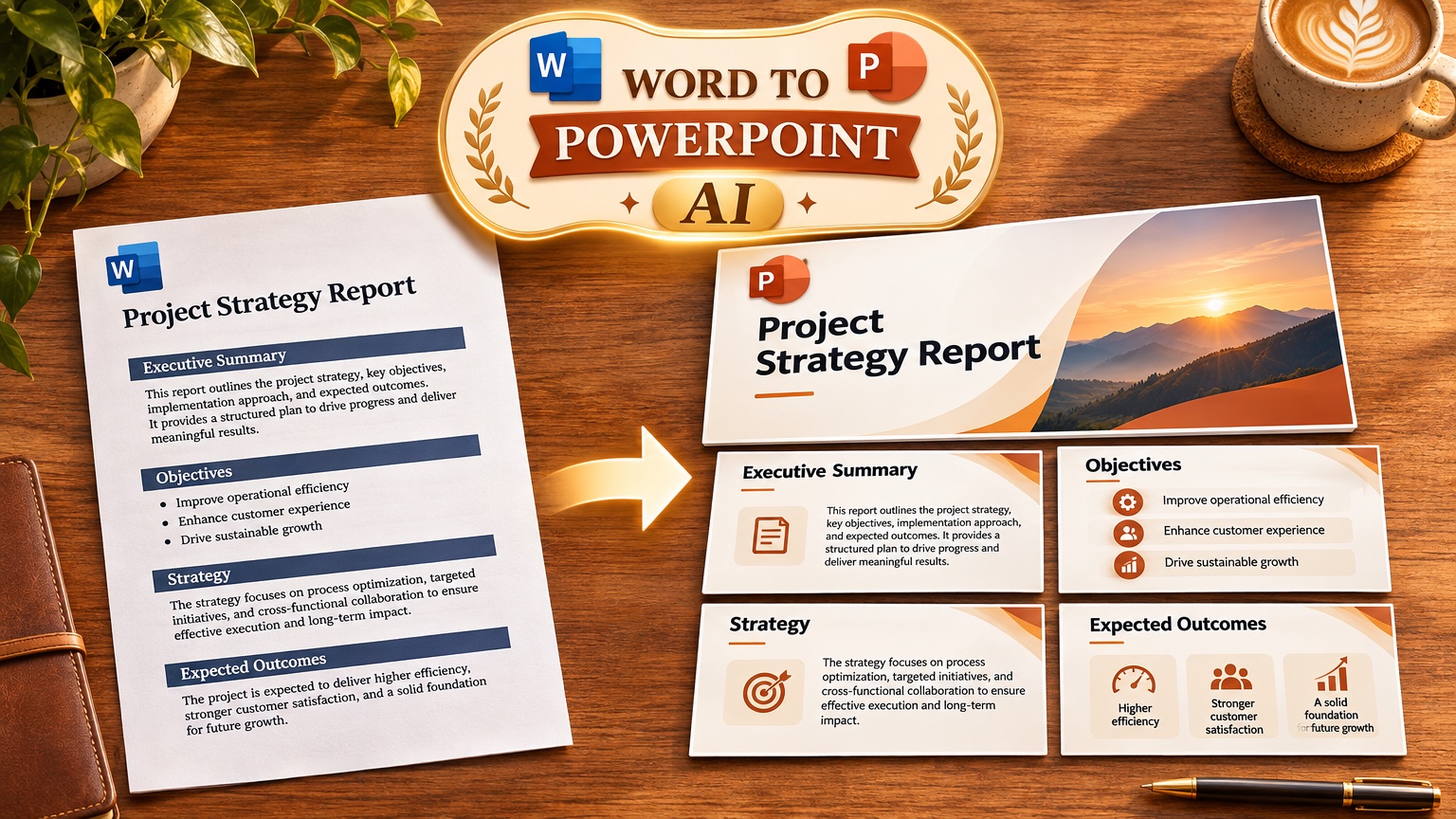
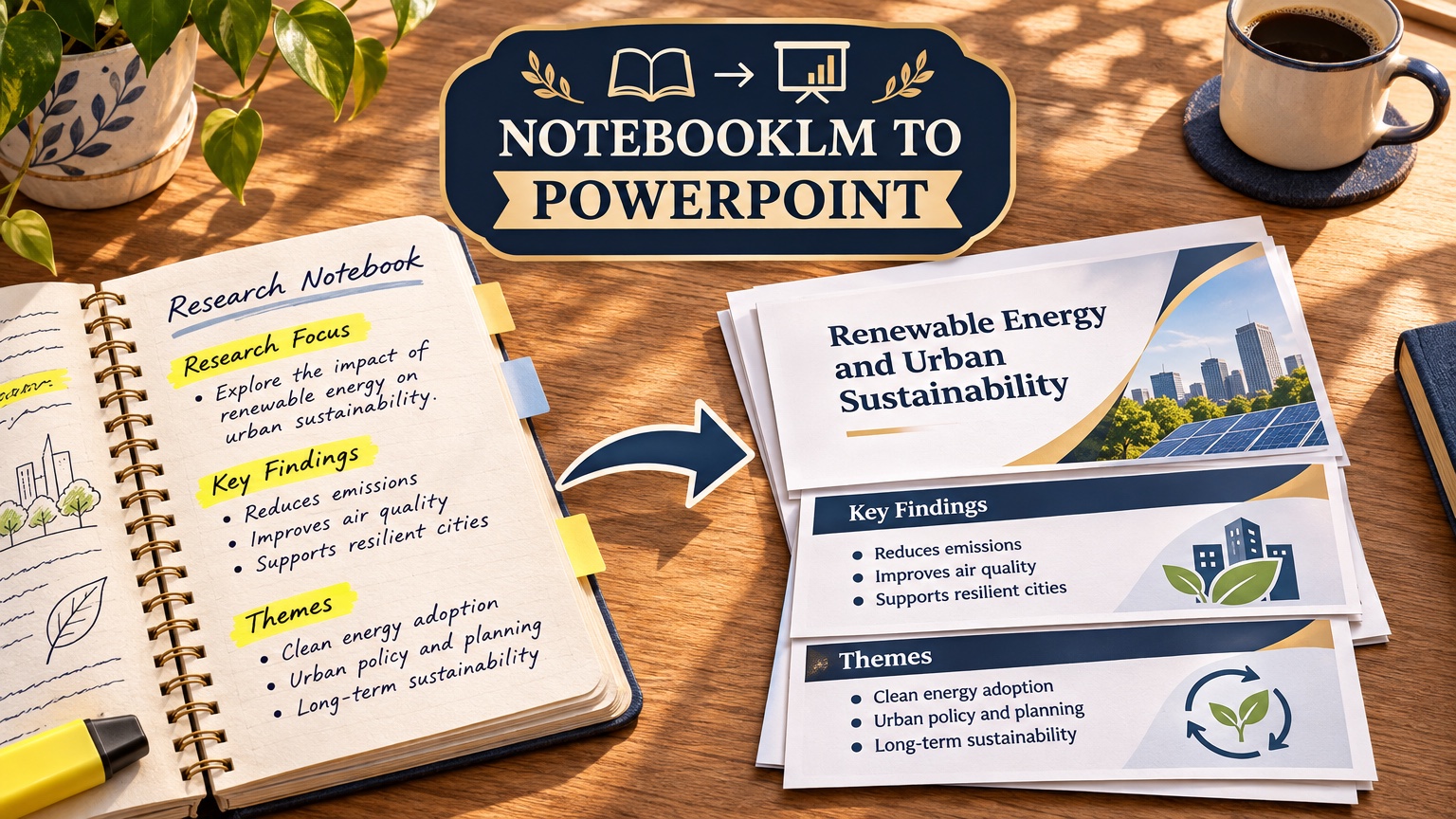
To turn NotebookLM research into PowerPoint slides you can control, export the synthesized brief as a PDF or Word file, upload it to a deck generator with File-only grounding, approve the slide-by-slide outline, then render. In our Fernhollow Q3 2026 PDF test, GenPPT kept 8 of 8 KPIs from a one-page report and took 2 min 34 s to reach the outline and concept sheet, then 1 min 21 s to render 8 slides.
NotebookLM is now branded Gemini Notebook, and its homepage (captured 21 November 2026) advertises "Turn your files into Slide decks". Those decks summarize what is in your notebook. A dedicated deck builder gives you more control when you need a fixed 16:9 deck with your slide order, your headline on each slide, a chosen art direction, and a .pptx your boss can open. To test the bridge for free, run your brief through the PDF to PowerPoint converter, which needs no account and allows 3 conversions a day.
What can NotebookLM make on its own?
NotebookLM is a research notebook. You add sources (PDFs, Google Docs, websites, YouTube links, pasted text) and ask questions grounded in them. One notebook holds up to 50 sources on the free plan, as our YouTube-to-notes guide explains.
The homepage lists four outputs: Slide decks from files, Mind Maps from brainstorms, Audio Overviews from assignments, and Video Overviews from textbooks. Inside a notebook you can also generate written reports such as briefing documents and study guides.
For a presentation, the briefing doc is usually the piece to export. It already condenses the key facts from your sources into one dense document.
When to move from NotebookLM to a deck builder
Stay in NotebookLM when its own slide deck is good enough for the room, such as a study session or a quick share with a classmate.
Move the brief into a deck builder when any of these is true:
- You need a fixed slide order and one headline per slide. A board, client, or professor expects a specific structure, not a summary in the order the model chose.
- You need a set art direction. That can be brand colors, a calm consulting look, or a bold keynote style that matches the rest of your work.
- You need a specific aspect ratio. 16:9 for a meeting, 4:5 for a LinkedIn carousel, 9:16 for Reels or TikTok.
- You need a
.pptxfile for PowerPoint, Keynote, or Google Slides. - You need to fix one slide without regenerating the whole deck.
We did not benchmark NotebookLM's slide decks for this post, so we make no claim about their accuracy or design quality. The bridge below is for the cases above.
Step 1: Export your NotebookLM brief
The goal is one clean text file that holds only what belongs in the deck.
- In your notebook, generate a briefing document (or a study guide for a class).
- Read it once and cut what you will not present. A brief is denser than a deck.
- Copy the text into Google Docs or Word.
- Keep real headings. Use Heading 1 or Heading 2 styles for each section, not bold body text. Deck builders read styled headings as slide boundaries.
- Keep the numbers and source names you need on screen. Move long citations to a "Sources" section at the end.
- Download as PDF or .docx.
A text-based PDF from Google Docs or Word has a selectable text layer, which AI tools read cleanly. Scanned PDFs rely on OCR and misread numbers more often. Our PDF to PowerPoint guide covers export quality checks in detail.
Step 2: Build the deck from the brief
You have two routes. Start with the free converter and pay only if you need the full deck.
Free route: the PDF to PowerPoint converter
Upload the exported PDF to GenPPT's free converter. It reads the text, writes a slide outline, and returns 3 designed slides as a PowerPoint file. It keeps your wording and figures and does not store the file.
Full route: GenPPT Studio with File only
For the complete deck, upload the PDF or .docx into GenPPT's AI PowerPoint generator:
- Attach the brief and select File only, so the outline is built from your NotebookLM export and nothing else.
- Write the instruction. Example: "10-slide research briefing for the leadership team. One conclusion per slide as the headline. Use only the numbers in the file. Last slide: sources."
- Approve the outline. Every slide title and fact is editable here. Fix numbers now, not after rendering.
- Pick a visual concept. GenPPT renders a 4-panel concept sheet so you choose the art direction before the full deck renders.
- Render and revise. Change single slides in chat.
- Export
.pptx, PDF, or PNG in any of 8 aspect ratios.
What this produced in our test. We ran an invented one-page report (Fernhollow Coffee Co. Q3 2026: $1,321,000 revenue, 8 KPIs, 3 risks, a Q4 plan) through this exact flow on 15 November 2026. GenPPT kept all 8 checked KPIs and plotted the monthly revenue chart from the file: July $412,000, August $438,000, September $471,000.
Studio pricing: a $1 3-day trial (card required), then Growth at $25/month or $99/year for 20 decks a month, or Max at $100/month for 100 decks. There is no free Studio plan; the free option is the converter above. See GenPPT pricing for details, or browse finished decks in the public GenPPT deck gallery before you pay.
The trade-off to know before you buy. GenPPT renders each slide as one full-bleed designed image, so fonts and charts look the same on every computer. You cannot click into text boxes after export. Change wording in the outline or chat before you download. Our post on full-bleed slides vs editable text boxes covers the workarounds.
How to split a NotebookLM brief into slides
A briefing doc packs more onto a page than a slide can hold. Use these rules when you edit the brief in Step 1 or the outline in Step 2.
| Brief element | Slide rule |
|---|---|
| Executive summary paragraph | One title slide plus one "key findings" slide with 3 points |
| Each major section | One slide. The headline is the conclusion, not the topic |
| Statistics in a paragraph | Pull 1 to 3 numbers into a chart or big-number slide |
| Lists longer than 4 items | Split across 2 slides or group into 3 themes |
| Quotes from sources | One quote per slide, with the source name |
| Citations and footnotes | Move to one closing "Sources" slide |
| Open questions | One "what we still need to know" slide before next steps |
Aim for about 10 slides. In our presentation statistics data, the median across 1,034 generated decks (3 August to 11 October 2026) was 10 slides, and 46% had 6 to 10. A dense 5-page brief rarely needs more.
Write headlines as conclusions. "Churn fell to 3.1% in Q3, down from 3.8%" beats "Churn analysis", because a reader who skims only the headlines still gets the story. Our McKinsey slide guide covers this action-title method in depth.
NotebookLM vs GenPPT vs Gamma vs Plus AI
Pick by the file your audience expects.
| Tool | Best for | Input from NotebookLM | Output | Price to start |
|---|---|---|---|---|
| NotebookLM slide decks | Quick study or review decks inside your notebook | Native, no export | Generated inside Google's app | Free with a Google account |
| GenPPT | Designed 16:9 or social decks you control slide by slide | Upload exported PDF or .docx, File only | .pptx, PDF, PNG (full-bleed slides) | Free PDF converter (3 conversions a day); Studio $1 3-day trial |
| Gamma | Scrollable web-card read-aheads shared as a link | Paste sections as text | Web link, plus PDF and .pptx export | 400 signup credits, no card |
| Plus AI | Native editable text boxes in Google Slides or PowerPoint | Paste text into the add-in | Native slides in your own template | 7-day trial (card required) |
When Gamma is the better pick: you want a free, no-card start and your audience will read the deck in a browser, not in a meeting. Gamma's native format is web cards, so layouts can shift when you export to PowerPoint.
When Plus AI is the better pick: your company requires its own Google Slides or PowerPoint master with editable text boxes. GenPPT's full-bleed slides do not fill corporate placeholders.
When none of these is right: if your research is for a startup fundraise, use Pitches.ai, which is built for 12-slide investor pitch decks.
FAQ
Can NotebookLM export to PowerPoint?
NotebookLM can generate its own slide decks inside the app (its homepage advertises "Turn your files into Slide decks"). Download options change often, so check the current menu in your notebook. If you need a deck you control slide by slide with a chosen design, export the brief and use the 2-step workflow above.
Is NotebookLM the same as Gemini Notebook?
Yes. Google's notebooklm.google.com now redirects to the Gemini Notebook page we captured on 21 November 2026.
Can I upload my NotebookLM audio overview instead?
GenPPT accepts audio and video files as input, but a written brief gives cleaner slides because the facts are already structured. Use the briefing doc for decks and keep the audio overview for listening.
Will the AI change my research numbers?
It can. In our Fernhollow test GenPPT kept 8 of 8 KPIs with File only selected, but you should still check every figure in the outline before you render. Fixing a number in the outline takes seconds; fixing it after export means a re-render.
How many slides should a NotebookLM brief become?
Around 10 for most briefs. One slide per major section, one for key findings, one for sources, and one for next steps.