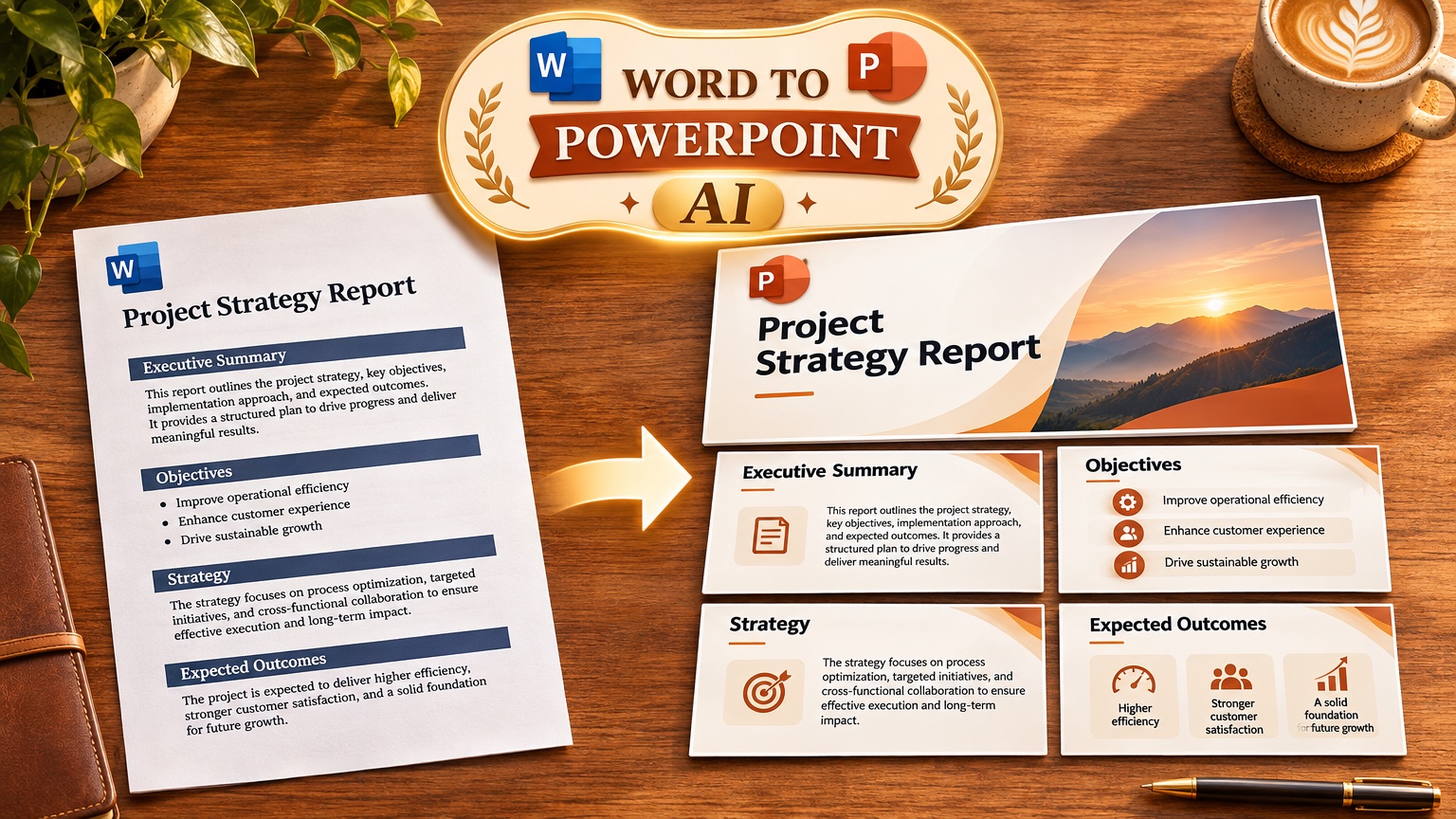
To turn a Word document into a PowerPoint with AI, pick the method by the file you must hand over. For native editable slides inside Microsoft 365, use Word's Export to PowerPoint presentation or Microsoft Copilot ($21 to $30 per user per month, billed yearly, on top of a Microsoft 365 plan). For designed slides that keep your numbers, upload the .docx to GenPPT's AI PowerPoint generator, which kept 8 of 8 KPIs in our Fernhollow Q3 2026 document test. For a free test, save the doc as PDF and run the free PDF to PowerPoint converter (3 conversions a day, no account).
Which Word to PowerPoint method should you use?
Start with the question your audience or IT team will ask: "Can I edit the text boxes?" or "Does it look designed?"
| Method | Cost | Output | Editable text boxes | Design | Best for |
|---|---|---|---|---|---|
| Word Export to PowerPoint | Included in Microsoft 365 | Native .pptx in PowerPoint for the web | Yes | Designer themes | Quick summary deck inside Microsoft 365 |
| PowerPoint Slides from Outline | Free in desktop PowerPoint | Native slides with your text, no AI | Yes | Your own template | Exact wording, no summarizing |
| Microsoft Copilot | $21 to $30/user/mo billed yearly, plus Microsoft 365 | Native .pptx | Yes | Your template or Designer | Teams that must stay inside their tenant |
| GenPPT .docx upload | $1 3-day trial, then $25/mo or $99/yr | Full-bleed designed .pptx, PDF, PNG | No, edit before export | Art-directed concept sheet, 8 aspect ratios | Reports and memos that must look designed |
| Save as PDF, then free converter | Free, 3 conversions a day | Outline plus 3 designed slides as .pptx | No | Designed | Testing before you buy |
| Canva Docs to Decks | Free tier, Pro $144/yr | Editable Canva deck | Yes, in Canva | Canva templates | Teams already designing in Canva |
When the native tools win: if your company locks a Slide Master and reviewers will edit text after you send the deck, use Word Export, Copilot, or Plus AI. GenPPT's slides are full-bleed images and do not fill corporate placeholders.
Method 1: Word Export to PowerPoint presentation
Word for the web has a built-in export that uses AI to summarize your document into slides. Microsoft documents it for Microsoft 365 subscribers.
- Open the document in Word for the web.
- Select File, then Export, then Export to PowerPoint presentation.
- Pick a design theme.
- Open the new deck in PowerPoint for the web and review every slide.
What to expect: Word condenses each section into a title and short bullets, adds icons or stock images, and saves the deck to OneDrive. It works best on documents with clear headings. Long tables and specific figures can be cut or rephrased, so check numbers before you present.
Method 2: PowerPoint Slides from Outline (free)
This is the oldest method and it uses no AI. Desktop PowerPoint reads your Word heading styles and turns them into slides, with your wording left exactly as written.
- In Word, apply Heading 1 to every slide title and Heading 2 to every bullet under it. Heading 3 becomes a second-level bullet.
- Save and close the
.docx. - In desktop PowerPoint, go to Home, New Slide, Slides from Outline, and pick the file.
- Apply your template, then select all slides and use Reset so they take the layout.
Body text without a heading style is skipped or dumped onto slides as one block, which is the usual reason this method "fails". Use it when the words must not change, as in legal or compliance decks.
Method 3: Microsoft Copilot in PowerPoint
Copilot can create a presentation from a Word file stored in your Microsoft 365 tenant (OneDrive or SharePoint), so the file stays inside your company's environment.
- Price: $21/user/month (up to 300 seats) or $30/user/month (Enterprise), billed yearly, on top of a qualifying Microsoft 365 plan. For a 10-person team at $30, that is $3,600 a year before Microsoft 365 itself.
- Better than GenPPT: native PowerPoint shapes, speaker notes, and tenant data governance with no upload to an outside vendor.
- Watch for: in The Professor-AI's tutorial (12 February 2026), choosing a design theme first improved structure, but some rewrites still needed manual copy and paste onto the slide.
Our Copilot in PowerPoint review has the per-seat cost table for 1 to 100 seats and compares Copilot with Plus AI and Templafy.
Method 4: Upload the .docx to GenPPT
GenPPT reads the Word file directly. You do not need to convert it first.
- Attach the
.docxon a new deck and choose File only. The outline then comes from your document alone, with no outside facts added. A legacy.docfile is rejected, so save it as.docxfirst. - Tell it the job. Example: "10-slide quarterly review for the leadership team. One conclusion per slide as the headline. Use only the numbers in the document."
- Edit the outline. Every slide title and bullet is editable. Fix a wrong figure or merge two slides here.
- Pick a visual concept from a 4-panel concept sheet.
- Render, then revise one slide at a time in chat.
- Export
.pptx, PDF, or PNG in 16:9, 4:3, 3:2, 1:1, 4:5, 3:4, 2:3, or 9:16.
Proof from our test. On 15 November 2026 we uploaded an invented one-page Q3 report (Fernhollow Coffee Co.: $1,321,000 revenue, 8 KPIs, 3 risks, a Q4 plan). GenPPT kept 8 of 8 checked KPIs, took 2 min 34 s to reach the outline and concept sheet, and 1 min 21 s to render 8 slides. The test file was a PDF; Word files go through the same File-only pipeline, and our PDF to PowerPoint guide notes that a Word original often parses more cleanly than a scanned PDF.
You cannot edit text boxes after export. GenPPT renders each slide as one full-bleed designed image so the layout is identical on every computer. Ask for the change in the chat editor before you download. Our post on full-bleed slides vs editable text boxes explains the reasoning and the workarounds.
Real cost: Growth is $99 a year for 20 decks a month, about $8.25 a month, or roughly $0.41 per deck at full use. See GenPPT pricing for Max ($100/month, 100 decks). There is no free Studio plan; full generation starts with a $1 3-day trial (card required).
To see a document-driven deck before you upload, browse the quarterly business review examples, each built from the prompt shown on the page.
Method 5: Save as PDF and use a free converter
To try AI on your document without an account:
- In Word, select File, Save As (or Export), and choose PDF. This keeps a selectable text layer.
- Open GenPPT's PDF to PowerPoint converter and upload the file (up to 8 MB and 30 pages).
- Get a slide outline and 3 designed slides as a PowerPoint file. It keeps your wording and figures and does not store your document.
The converter allows 3 conversions a day with no login. For the full deck, move to Method 4.
What about Canva Docs to Decks?
Canva can turn a Canva Doc into a presentation. You first paste or import your Word text into a Canva Doc, then convert. It fits a team that already co-edits slides and social graphics in Canva in real time. Our AI presentation maker comparison found that Docs to Decks summarizes loosely, so check specific numbers.
How to split a Word document into slides
These rules apply to every method above. Use them in Word before converting or in the outline step after upload.
| Word element | Slide rule |
|---|---|
| Heading 1 | One slide per Heading 1. The heading becomes the slide headline |
| Heading 2 under it | A bullet, or its own slide if it has more than 60 words beneath it |
| Paragraph over 3 sentences | Cut to one sentence of 12 words or fewer, move the rest to speaker notes |
| Table with numbers | One chart per table, showing at most 6 data points |
| Bulleted list over 4 items | Split into two slides or group into 3 themes |
| Executive summary | Title slide plus one "three things to know" slide |
| Appendix and footnotes | Leave out, or one closing "Sources" slide |
Target about 10 slides. In our presentation statistics data, the median across 1,034 generated decks (3 August to 11 October 2026) was 10 slides, and 46% had 6 to 10. A 10-page Word report rarely needs more than 12.
Write each headline as the conclusion. "Q3 revenue grew 18% to $1,321,000" beats "Q3 revenue", because a reader who skims only the headlines still gets the story.
Word formatting that breaks the conversion
Each item below is a common cause of a bad Word-to-PowerPoint conversion, with its fix.
- Fake headings. Bold, large body text looks like a heading to you but not to the converter. Apply real Heading 1 and Heading 2 styles.
- Text boxes and shapes. Text inside Word text boxes or SmartArt is often skipped. Move it into normal paragraphs.
- Tracked changes and comments. Accept or reject all changes and delete comments first, or deleted text can reappear on slides.
- Floating images. Images set to "in front of text" lose their place. Set them to "in line with text" or add them later.
- Tables split across pages. Merge them into one table, or the tool may read two half-tables.
- Footnotes and endnotes. Most tools ignore them. Put any number you need on a slide into the body text.
- Headers, footers, and page numbers. These can show up as stray bullets. Remove them from the export copy.
- Scanned Word files. A
.docxthat holds only an image of a page has no text to read. Use the original document.
FAQ
Can Word convert to PowerPoint automatically?
Yes. Word for the web has File, Export, Export to PowerPoint presentation for Microsoft 365 subscribers, and desktop PowerPoint can build slides from a Word outline through Slides from Outline.
Is there a free AI Word to PowerPoint converter?
Save the document as PDF and use GenPPT's PDF to PowerPoint converter: an outline plus 3 designed slides, 3 conversions a day, no account. Full GenPPT decks start with a $1 3-day trial.
Will AI change the numbers in my Word document?
It can. Pick a File-only or similar grounding setting where the tool has one, and check every figure in the outline before you render. GenPPT kept 8 of 8 KPIs in our Fernhollow test with File only selected.
Can I edit the slides after converting?
With Word Export, Slides from Outline, Copilot, and Canva, yes, in native text boxes. With GenPPT, you edit the outline and individual slides in the chat editor before export, because each exported slide is a full-bleed image.
Should I use this for a startup pitch deck?
For an investor pitch deck, use Pitches.ai, which is built for 12-slide fundraising decks. Use the methods above for reports, reviews, training, and status updates.