
Canva has no button that exports to Google Slides. The bridge is a PowerPoint file. In Canva, click Share > Download, choose PPTX, and download all pages. In Google Slides, click File > Import slides and upload the file, or upload it to Google Drive and click Open with Google Slides.
Most text, shapes, and pictures come across as editable objects. Animations and embedded videos do not: Canva's own help says they "may not play as expected" in a PPTX download. Fonts and text wrapping can also change. The table of what breaks gives a fix for each. If the layout must look exactly like Canva, use images instead.
Every menu label on this page comes from Canva's Help Center and Google's help pages, checked on 27 November 2026. Where the help pages say nothing, we say so.
How to Convert Canva to Google Slides
- 1Canva: Share > DownloadFile type PPTX, pages All.
- 2Slides: File > Import slidesUpload the .pptx. Keep original theme.
- 3Check every slideFonts, text wrap, and media.
Step 1: Download the Canva Deck as a PPTX File
- Open the presentation in Canva.
- Click Share, then Download.
- Choose PPTX as the file type. Canva's file type list calls it "PPTX (Microsoft PowerPoint)".
- Under the pages option, choose All. You can also choose This Page or Custom for some pages only.
- Click Download.
- Download
Download
File type
PPTX (Microsoft PowerPoint)
Save download settings
Select pages
All
Or: This Page · Custom
Download
These steps are from Canva's help page Download or save designs to your device. Canva's page on download file types adds three points about PPTX:
- PPTX is "for presentations only". Other Canva design types cannot download as PPTX.
- A design downloaded as PPTX "may look different" in PowerPoint. "You may need to make edits, or download and install the fonts you used in Canva to your device."
- "Animations and embedded videos are not yet supported" in PowerPoint, so "they may not play as expected when downloaded as PPTX."
Premium elements. If the deck uses premium elements and you are on Canva Free, Canva asks you to pay before the download. Its help gives three options: buy a Pro Content License, upgrade, or download a watermarked draft.
Plans. Canva's download help lists some options as paid-plan only: bulk download, compressed files, transparent backgrounds, SVG, "and many others". PPTX is not named on that list. We could not check this in a signed-in Canva Free account.
Step 2: Import the PPTX into Google Slides
Use this when you want the slides inside a Google Slides file, new or existing.
- Open a presentation in Google Slides. For a new file, go to slides.google.com/create.
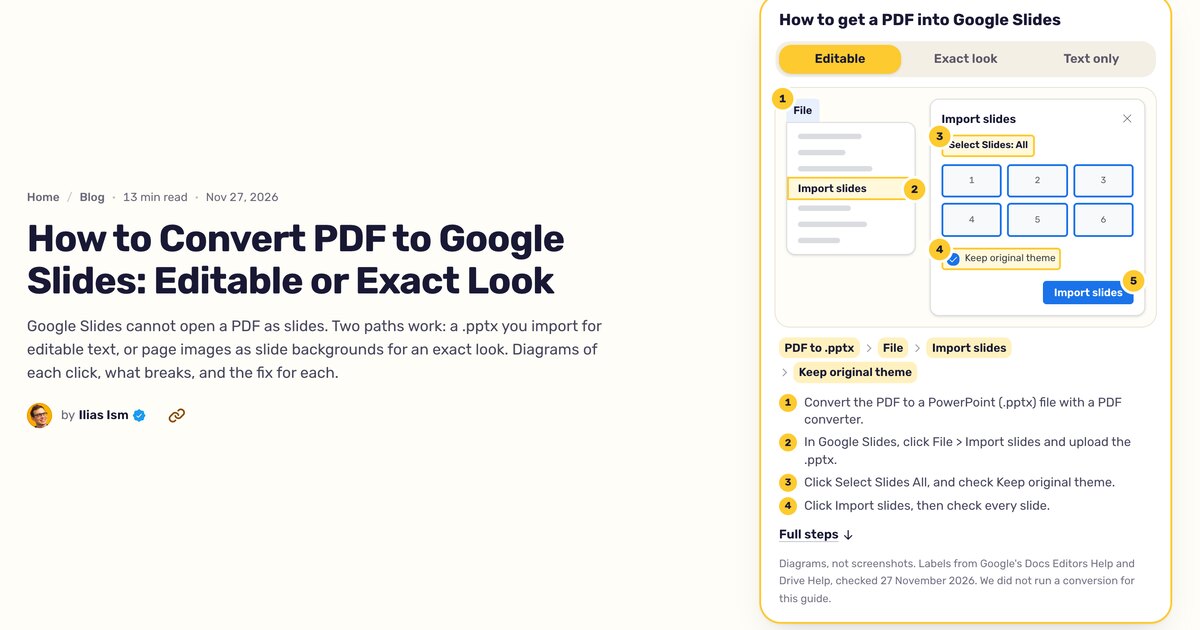
- Click File > Import slides.
- Upload the .pptx from your computer, or choose it from Drive.
- Click Select.
- Click the slides to import, or click Select Slides: All.
- Check Keep original theme to keep the Canva look. Uncheck it to fit the slides to the theme of this presentation.
- Click Import slides.
File
- Import slides
Import slides
Select Slides: All
Keep original theme
Import slidesThese steps are Google's own, from Get started with Google Slides. In a new presentation, delete the empty first slide after the import.
Or Open the PPTX from Google Drive
Use this when you want the whole file as it is.
- Upload the .pptx to Google Drive (New > File upload).
- Double-click the file. A preview opens.
- At the top, click Open with Google Slides.
deck.pptx
Open with Google SlidesDouble-click the .pptx in Drive to open this preview
Google's help page says "any changes you make are saved to the original Microsoft Office file." The file stays a .pptx. To get a native Google Slides file, Google's community answers point to File > Save as Google Slides. To convert every upload, Google's Drive Help gives a setting: at drive.google.com/drive/settings, check Convert uploads to Google Docs editor format.
Canva also has a Google Drive app (Apps > Google Drive in the editor side panel). Canva's help says its Save your design to Google Drive button can upload the design to Drive, with options for "the file size and type". Then open that file with Google Slides as above.
What Breaks When You Import a Canva PPTX
Each card names its source. Where a card cites a third-party guide, neither Canva's nor Google's help confirms it.
Fonts change or text gets bigger or smaller
Cause: Canva says a PPTX 'may look different' and you may need to install its fonts. That advice is for PowerPoint. Google Slides runs in the browser and uses its own font list. SlideModel and SlidesAI say Slides swaps a missing font for a similar one.
Fix: Before you download, switch the text in Canva to a font that is also in the Google Slides font list. After the import, select the text and pick a font from the font list (More fonts adds others).
Source: Canva Help; SlideModel and SlidesAI guides
Animations do not play
Cause: Canva: animations are not yet supported in PowerPoint and may not play as expected in a PPTX download.
Fix: Add them again in Google Slides: select an object, then Insert > Animation. For slide transitions, click Slide > Transition.
Source: Canva Help; Google Docs Editors Help
A video shows as a still picture
Cause: Canva: embedded videos may not play in a PPTX. Google: embedded videos in PowerPoint files are converted to images.
Fix: Delete the picture and insert the video again in Google Slides with Insert > Video, from YouTube or Google Drive.
Source: Canva Help; Google Drive and Docs Editors Help
A chart cannot be edited
Cause: Google: embedded charts in PowerPoint files are converted to images. Canva's help does not say how its charts download to PPTX.
Fix: Make the chart again with Insert > Chart (for example From Sheets), or keep the picture if the numbers will not change.
Source: Google Drive Help
Text wraps or moves
Cause: Canva: text boxes can resize slightly during download, and extra spaces in a text box change how the text wraps. Grouped elements can move.
Fix: In Canva, drag the side handles of the text box out and back, remove extra spaces, ungroup elements, wait for All changes saved, and download again.
Source: Canva Help
Lines are shorter or out of place
Cause: Canva: some line elements are not designed for consistent export and can change length or alignment.
Fix: In Canva, delete the line. Go to Elements, search "lines", open Graphics (not Shapes), add a line graphic, and download again.
Source: Canva Help
Gradients or effects look different
Cause: SlidesAI's guide says gradient backgrounds and pattern fills can change tone. Canva's and Google's help do not cover effects in a PPTX.
Fix: Compare those slides with Canva. If one does not match, use the image method for that slide only.
Source: SlidesAI guide
Canva asks you to pay before the download
Cause: The deck has premium elements and you use Canva Free.
Fix: Replace the premium elements with free ones, buy a Pro Content License, or download a watermarked draft to test.
Source: Canva Help
What each help page says, side by side:
| Element | Canva's help | Google's help |
|---|---|---|
| Animations | Not yet supported in PowerPoint; may not play in PPTX | Add them again with Insert > Animation |
| Embedded videos | Not yet supported; may not play | Embedded videos in PowerPoint files become images |
| Charts | Not stated | Embedded charts in PowerPoint files become images |
| Fonts | PPTX "may look different"; install the fonts you used | Not stated for imports. Fonts come from the font list |
| Text and lines | Text boxes can resize; some lines change length | Not stated |
| Gradients and effects | Not stated for PPTX | Not stated |
Sources: Canva's download file types and Lines, texts, or images look different after download; Google's Work with Office files and Add or change animations and transitions. Third-party: SlideModel and SlidesAI.
After any import, click through every slide in Slideshow before you share it.
Locked Layout? Use Images Instead
Use this when the slides must look exactly like Canva and nobody needs to edit the text: a class handout, a sponsor deck, a design you already approved.
In Canva:
- Click Share > Download.
- Choose PNG (or JPG) as the file type and All pages.
- Click Download. If the download is a .zip file, unzip it.
- Download
Download
File type
PNG
Save download settings
Select pages
All
Or: This Page · Custom
Download
In Google Slides:
- Make a new presentation. If your Canva design is not 16:9, first set the same size in File > Page setup (see slide dimensions).
- Choose a slide and click Slide > Change background.
- Next to Image, click Choose. Pick the image for that page and click Select.
- Click Done. Add a slide and do the same for the next page.
Background
.gif, .jpg or .png, less than 50 MB
The steps and the 50 MB limit are from Google's theme and background help. A background image stays in place while you add text boxes or speaker notes on top. To place the image as an object instead, use Insert > Image.
What you give up: the text is part of the picture. It cannot be edited, searched, or read by a screen reader. Add the text to the speaker notes if people will read the deck on their own.
What About a PDF?
Canva can download a deck as PDF. Google Slides cannot import one: Google's list of files that convert to Slides has PowerPoint and OpenDocument formats only, and PDF is listed for text recognition into Docs. Upload the PDF to Drive to share or show it, or download PNG pages and use the image method above. For any other PDF, see how to convert a PDF to Google Slides.
Which Method Should You Use?
| You need to | Method | Editable in Slides? |
|---|---|---|
| Edit the text and work on it with others | PPTX + File > Import slides | Yes |
| Keep the whole file as one .pptx | PPTX + Open with Google Slides | Yes |
| Make it look exactly like Canva | PNG pages as backgrounds | No |
| Only show or share it | PDF in Google Drive | No |
You can mix them. Import the PPTX, then replace the few slides that broke with PNG backgrounds.
Rebuild Instead with GenPPT
GenPPT does not convert Canva files. It makes new decks.
If your Canva deck needs more than a fix, download it from Canva as PPTX or PDF and attach the file when you start a deck in GenPPT. GenPPT reads the slides, drafts a new outline for you to approve, and designs new slides. The standard .pptx export has one picture per slide, so in Google Slides it behaves like the image method: the layout holds, and you change the text in GenPPT chat.
On paid plans, the Editable PowerPoint export gives you editable text, numbers, tables, and charts over the slide artwork. It is made for PowerPoint and Keynote, is queued, and is sent by email. We have not tested it in Google Slides, so check every slide after the import.
GenPPT has no free plan. The trial costs $1 for 3 days of full access and needs a card. See pricing.
Related Google Slides Guides
- How to convert PowerPoint to Google Slides
- How to add audio to Google Slides
- PowerPoint and Google Slides dimensions
- Gamma vs. Canva for presentations
FAQ
Can you convert Canva to Google Slides?
Yes, through a PowerPoint file. In Canva, click Share > Download, choose PPTX, and download all pages. In Google Slides, click File > Import slides and upload the file. Canva has no direct Google Slides export.
Why do my fonts change when I move Canva slides to Google Slides?
Google Slides uses its own font list. If a Canva font is not in it, the text shows in a different font, and line breaks can move. Canva's help warns that a PPTX "may look different" and may need the fonts installed. Before you download, use fonts that are also in the Google Slides font list.
Do Canva animations work in Google Slides?
No. Canva's help says animations and embedded videos "are not yet supported" in PowerPoint files and may not play. Add animations again in Google Slides with Insert > Animation.
Can I import a Canva PDF into Google Slides?
No. Google Slides converts PowerPoint and OpenDocument files, not PDF. Download PNG pages from Canva and set each one as a slide background, or share the PDF from Drive.
Is downloading PPTX from Canva free?
Canva's download help lists bulk download, compressed files, transparent backgrounds, and SVG among the paid-plan options, and PPTX is not named there. Premium elements in the deck still need a payment, a license, or a watermarked draft. We checked the help pages on 27 November 2026, not a signed-in free account.
How do I keep the Canva design exactly the same in Google Slides?
Download the deck from Canva as PNG, all pages. In Google Slides, click Slide > Change background, then Choose next to Image, for each slide. The design cannot move, but the text is no longer editable.
Can I edit a Google Slides deck in Canva?
Yes. Canva's help describes an import: on the Canva home page, click Projects, then Add new > Import, and connect Google Drive. See Import Google Slides presentations.